
Brief a SaaS Pricing Page Add-on Dependency Diagram
A SaaS pricing page add-on dependency diagram should answer one buyer question immediately: Can I buy this add-on with the plan I am comparing, and what must I have first?
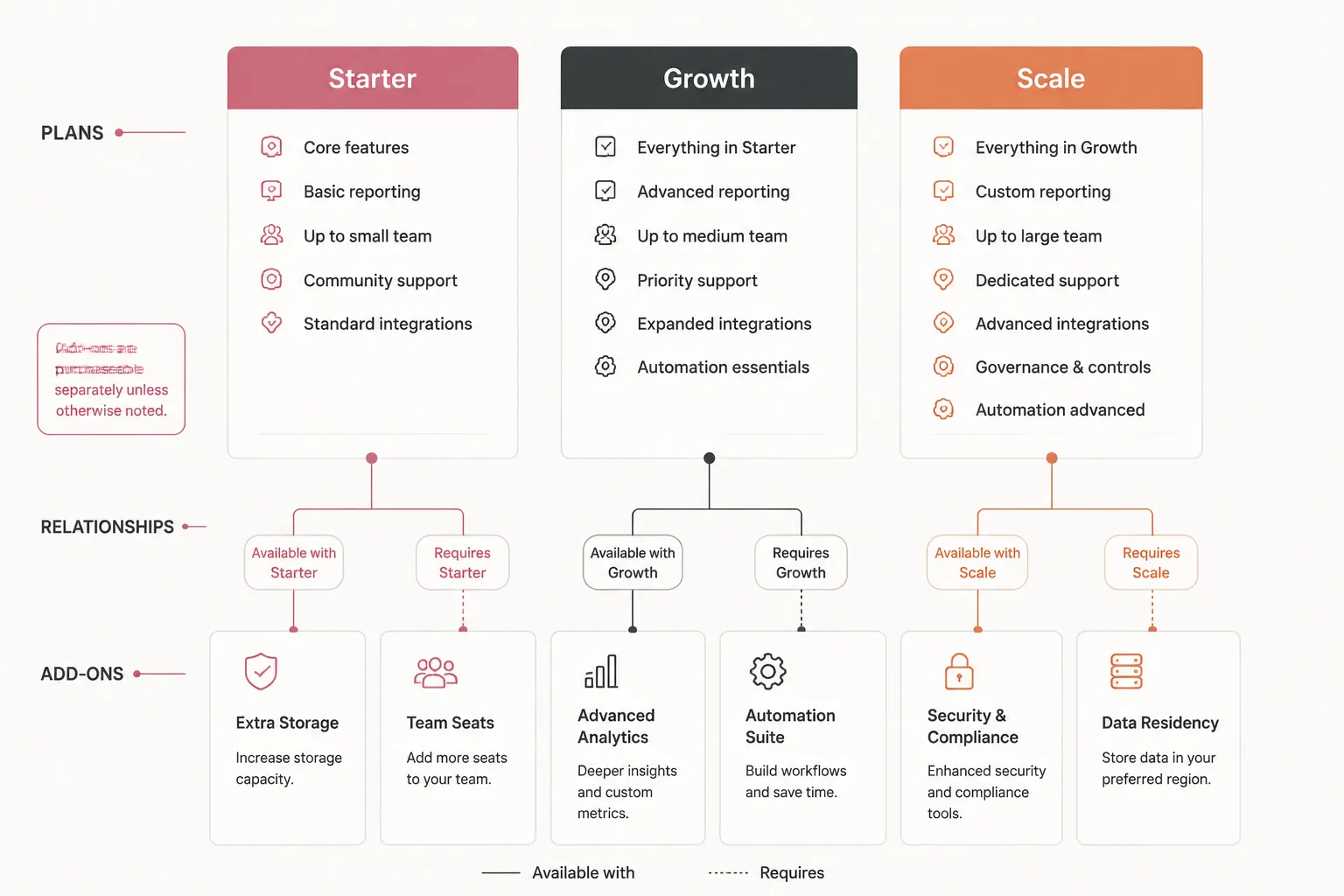
Brief the asset around that question. Show the relevant plan or tier, the add-on, any prerequisite add-on, and the rule connecting each item. Do not make the buyer infer the relationship from proximity, color, or an unlabeled connector.
The diagram explains pricing relationships already represented in the product and pricing model. It does not replace the pricing table, checkout terms, or configuration rules. Layout guidance can support inspection, but it does not establish business impact, formal accessibility conformance, or legal clearance.
Start With the Buyer Comparison Question
Write the decision before drawing the nodes. For example:
For a buyer comparing the Growth and Scale plans, show which add-ons are available, which selections require another add-on, and which selections extend an existing usage limit.
This sentence sets the scope and gives the page team a test for every visual element. Remove any node that does not help answer it. A complete map of every product feature can make the relevant plan and add-on relationships harder to scan.
Keep internal feature toggles, billing architecture, and implementation details out of the buyer-facing asset unless the buyer needs to understand the resulting entitlement.
What the Diagram Must Show
Plan nodes
Give each relevant plan or tier a distinct node, or make its relationship to the plan column unmistakable. Include:
- Plan name and tier position, when the page uses a tier sequence
- Whether the plan is required for the subscription
- The included feature or entitlement relevant to the add-on
- Any usage limit that the add-on changes
Do not include every plan automatically. Include only the plans involved in the dependency question unless the asset is intended to explain the complete add-on structure.
Eligibility must not depend on color alone. The plan name and rule should remain understandable without color distinction.
Add-on nodes
Identify each purchasable item and its role using the terminology shown in the pricing table. Include:
- Add-on name
- Short description of what it changes
- Price or price unit, when approved pricing information is available
- Required plan or eligible plans
- Required add-on, if one exists
- Usage limit or entitlement affected
- Reference to the corresponding pricing-table row or page section through the surrounding page structure
A shortened label can create a second naming system. Use the product wording that the buyer will encounter elsewhere on the page.
Relationship labels
Every connector needs a text label that states the pricing rule. Suitable labels include:
Available withAvailable only withRequiresExtends limitIncluded inReplacesApplies to
A generic line labelled “related” leaves the buyer to reconstruct the rule. Use a consistent direction when an add-on depends on another add-on. If direction adds no meaning, use a non-directional connector and state the relationship in nearby text.
Exception notes
Place exceptions beside the affected relationship. A short note such as “Available with Scale only. Requires Data Retention.” is easier to inspect than two separate rules or a distant footnote.
Read the Relationship Before Styling It
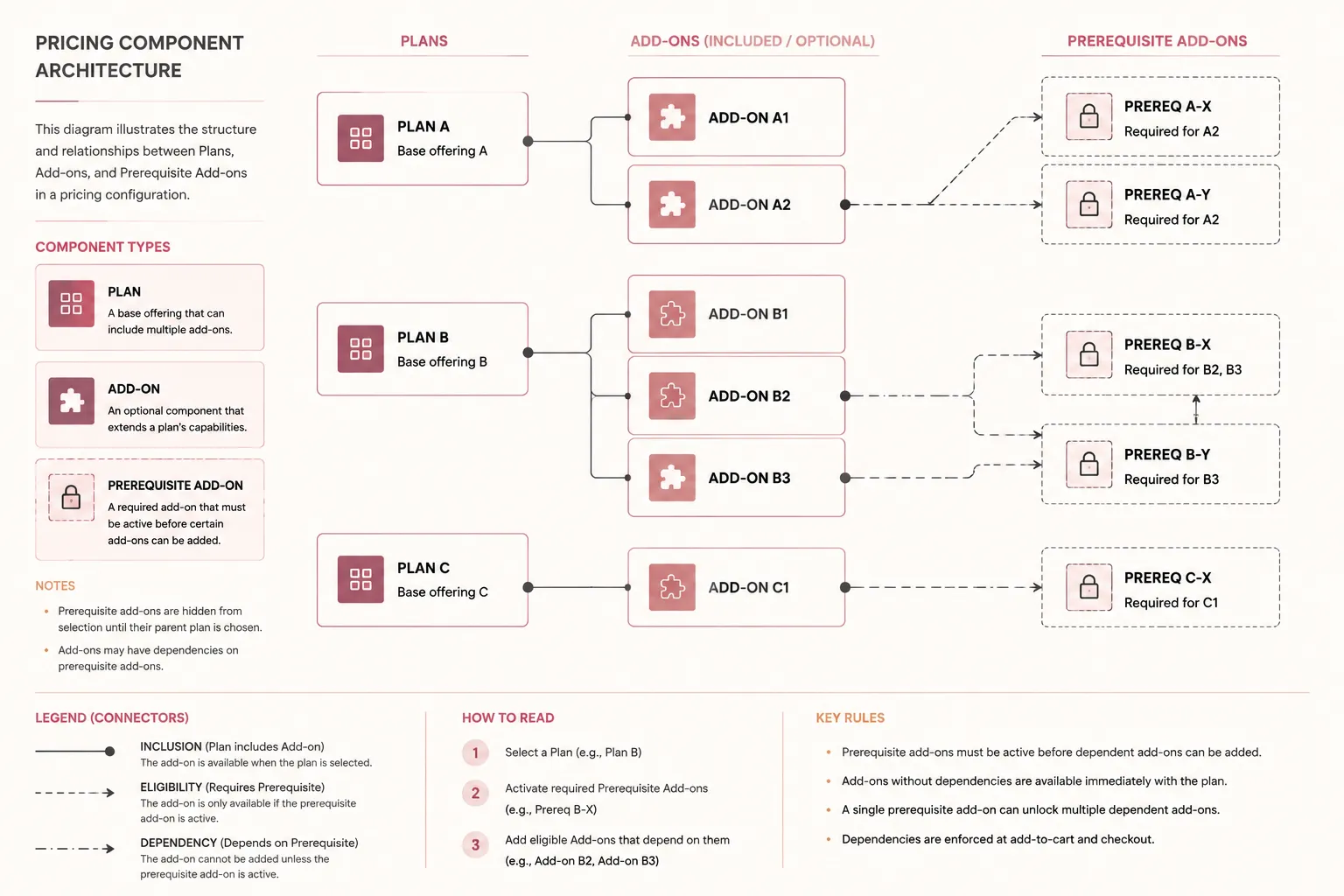
Eligibility language can describe different purchasing conditions. Treat these statements as separate rules until the product owner confirms their meaning:
- Available on Growth
- Included with Growth
- For Growth customers
- Requires Growth
- Works with Growth and Scale
- Upgrade required
The brief should state whether the add-on is included in the plan price, available for separate purchase, restricted to a plan, dependent on another add-on, available after an upgrade, or available through a separate sales or configuration path.
Do not resolve an unclear rule through visual treatment. Request the source-of-truth wording before the diagram enters production.
Compact Example Reading
Assume a page has Starter, Growth, and Scale plans, plus Advanced Reporting, Extended Retention, and Priority Support. A drafting model could read:
Advanced Reporting— Available only with Growth or ScaleExtended Retention— Requires Advanced ReportingExtended Retention— Extends the retention limitPriority Support— Available with Starter, Growth, or Scale
This example separates eligibility, dependency, and the resulting entitlement. It is a drafting model, not a product pricing pattern. Replace every item with verified product terminology and current rules.
Keep the Diagram and Table Synchronized
Check the diagram against the pricing table, add-on block, plan descriptions, and relevant configuration copy. Record uncertain fields instead of filling gaps with assumptions.
| Item | Type | Eligible plan | Prerequisite | Price unit | Affected entitlement |
|---|---|---|---|---|---|
| Verified product item | Plan or add-on | Confirmed tier | Confirmed dependency | Confirmed unit | Confirmed feature or limit |
When a plan changes, this inventory identifies the node, connector, label, and exception note that need review. Pricing-model research and configuration studies can help frame dependency types, but they do not verify a product's current plan rules.
Mobile Pass
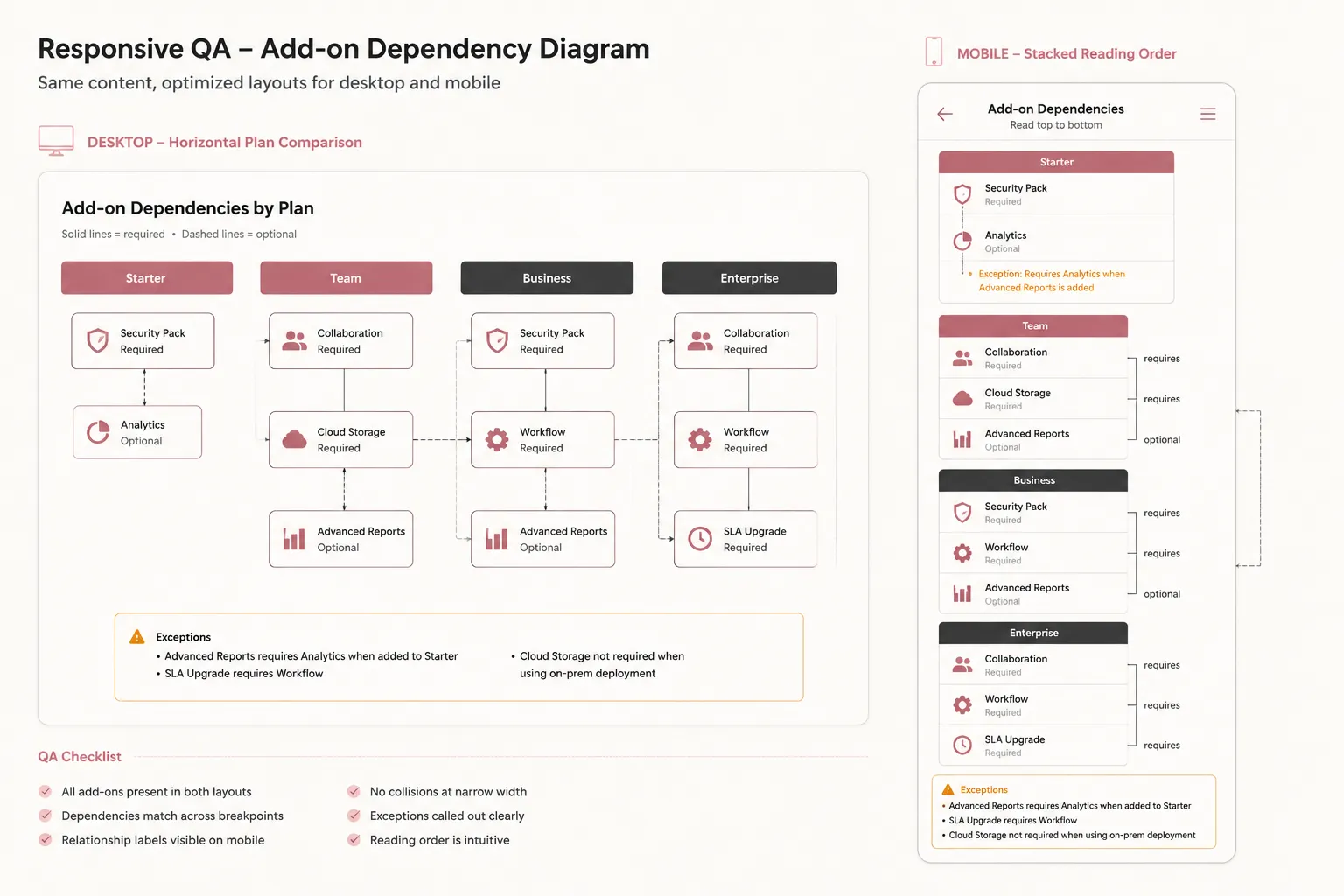
Inspect the narrowest supported page width. Desktop space can hide ambiguity; mobile wrapping exposes it.
- Plan names remain readable.
- Add-on labels wrap without losing their meaning.
- Connectors still point to the correct nodes.
- Relationship labels stay beside the relevant connector.
- Notes do not collide with arrows or adjacent labels.
- The reading order remains obvious after stacking.
- The diagram can be compared with the pricing table without excessive scrolling.
- Any legend stays close to the rule it explains.
Do not shrink a dense desktop export until its labels become unreadable. Specify a deliberate stacked arrangement, or provide the same rules as adjacent page text. The mobile version is a separate inspection target.
Accessibility and Asset Records
Treat accessibility as a publishing and QA check, without presenting the asset as formally certified. Important relationship rules should appear in nearby HTML text so the diagram is not the only way to understand the comparison.
- Give the image concise alternative text that describes its purpose.
- Do not use alternative text to reproduce every connector.
- Do not use color as the only indicator of eligibility.
- Check text contrast in the rendered page context.
- Confirm that the comparison remains understandable when the image is unavailable.
- Use a heading that identifies the comparison task.
A suitable alternative text example is: “Diagram showing which pricing plans support selected add-ons and which add-ons require another add-on.” Nearby text should carry the detailed rules.
Record how each visual component enters the asset. Note original illustrations, product marks or interface images supplied by the product team, approved-library icons, licensed imagery, and third-party visuals requiring attribution or usage tracking. This is a production record, not a substitute for rights verification.
Pre-Publication Inspection Path
- Rule check: Confirm every plan, add-on, eligibility rule, and prerequisite against the current pricing source.
- Direction check: Confirm that each connector expresses the intended relationship.
- Label check: Replace generic relationship labels with explicit rule language.
- Table check: Compare the wording with the pricing table and add-on block.
- Exception check: Confirm that special cases appear beside the affected relationship.
- Mobile pass: Inspect wrapping, order, overlap, and readability.
- Text fallback check: Confirm that key rules remain available outside the image.
- Rights check: Verify the source record for each non-original visual element.
- Owner check: Assign one reviewer for pricing rules and one for page presentation.
- Final publish check: Reinspect after the page is rendered in its actual layout.
The final pass matters because surrounding content can change the diagram's apparent order and spacing.
Common Briefing Errors
Using lines without rule labels
A connector can show that two items are related, but not how they are related. Label the rule.
Treating eligibility as inclusion
“Available with Scale” does not necessarily mean “included in Scale.” Keep access and inclusion as separate statements.
Mixing product and pricing dependencies
A feature may depend on another feature internally, while the buyer-facing rule concerns a plan or add-on. Show only the relationship needed for the purchase decision.
Hiding prerequisites in a footnote
A prerequisite changes what the buyer can select. Place it beside the affected add-on relationship.
Exporting one dense image for every viewport
A diagram that works at desktop width may fail when compressed on mobile. Specify the mobile arrangement in the brief.
Filling incomplete pricing data
An unknown price, unit, or eligibility rule should remain marked for verification.
Final Brief Handoff
The brief is ready for design when it contains:
- The buyer comparison question
- The exact plans and add-ons in scope
- A node list with approved names
- An explicit label for every relationship
- Confirmed eligibility and prerequisite rules
- Price and unit fields, where relevant
- The affected feature or usage limit
- The intended mobile arrangement
- Nearby text requirements and alternative text
- A source-rights note
- Named reviewers for pricing accuracy and page QA
Before publishing, the page team should trace every visible relationship back to a current pricing rule. That is the practical stopping point: the buyer can identify what is eligible, what is required, and what changes without guessing from the layout.
Sources
- Automated Analysis of Pricings in SaaS-based Information Systems
- Racing the Market: An Industry Support Analysis for Pricing-Driven DevOps in SaaS
- Pricing4SaaS: Towards a Pricing Model to Drive the Operation of SaaS
- From Static to Intelligent: Evolving SaaS Pricing with LLMs
- HORIZON: a Classification and Comparison Framework for Pricing-driven Feature Toggling – Technical Report
- Unintended consequences of selling B2B digital subscription add-ons for customer onboarding
- The anatomy of a sales configurator