
Capability States, Conditions, and Exceptions
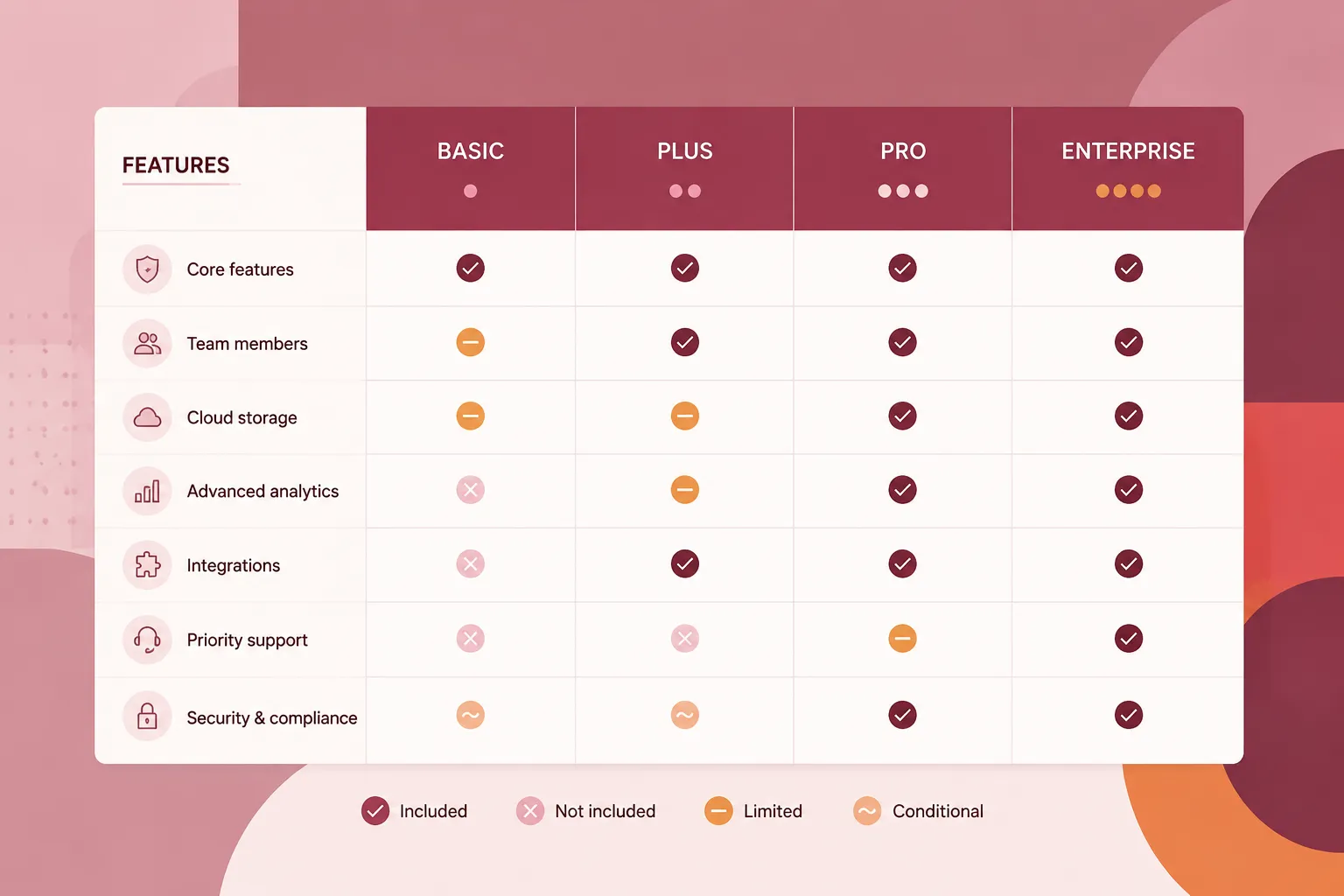
A pricing table becomes difficult to inspect when every capability is reduced to the same checkmark, dash, or muted label. For a buyer comparing plans, “included” may mean full access, a small allowance, selected seats, or access after an add-on is purchased.
The planning task is to show those differences without turning the table into a technical specification. This guide sets out a practical way to structure included, excluded, limited, and conditional states across plan columns, then carry that logic into assets, mobile layouts, and publishing checks.
Define the Capability States Before Designing the Table
Start with the capability, not the icon. A product may contain many functions, limits, support terms, and optional modules, while the pricing page needs only the subset that affects plan comparison, cost, qualification, or recurring buyer questions.
Keep two inventories separate:
- Product truth: the complete set of capabilities available within the service.
- Page truth: the smaller set a buyer needs to compare plans.
A feature that distinguishes two plans deserves different row treatment from one that appears everywhere. Use a feature inventory to expose those differences before the design team arranges the plan columns.
| Inventory field | Planning question |
|---|---|
| Capability | What exactly is being compared? |
| Buyer relevance | Does it affect plan choice or qualification? |
| Entitlement state | Is access included, unavailable, limited, or conditional? |
| Limit or metric | Is access measured by seats, credits, usage, time, or another quantity? |
| Cost implication | Does access require an add-on, higher tier, or separate agreement? |
| Known question | What might a buyer misunderstand? |
| Page treatment | Should the table use text, an icon, a footnote, or an FAQ? |
This inventory is brief-ready because it connects product rules to visible page decisions. It also exposes missing definitions before a row label becomes part of the published comparison.
Use a Consistent Feature Availability Vocabulary
A shared vocabulary lets readers compare rows without decoding every plan column independently. The wording should match the product’s current pricing rules and should expose the condition that changes the answer.
Included
Use included when the capability is part of the selected plan under the displayed terms. The label still needs inspection: included may describe complete access, a stated allowance, or access subject to a limit.
Examples include “Included,” “Included up to five seats,” and “Included with 10,000 credits per month.” Put the quantity near the state instead of implying unlimited access.
Unavailable
Use unavailable when the capability is not part of the plan under the displayed terms. An explicit label such as “Not included” or “Unavailable” is easier to interpret than an unexplained blank or dash.
A blank cell is not a state.
Limited
Use limited when the capability exists, but its depth, quantity, duration, or scope changes by plan. The row should show both the capability and the boundary that varies.
- Limited to one workspace
- Up to 25 users
- 100 credits monthly
- Basic reporting only
- Seven-day history
A checkmark alone hides the comparison variable.
Add-on-dependent
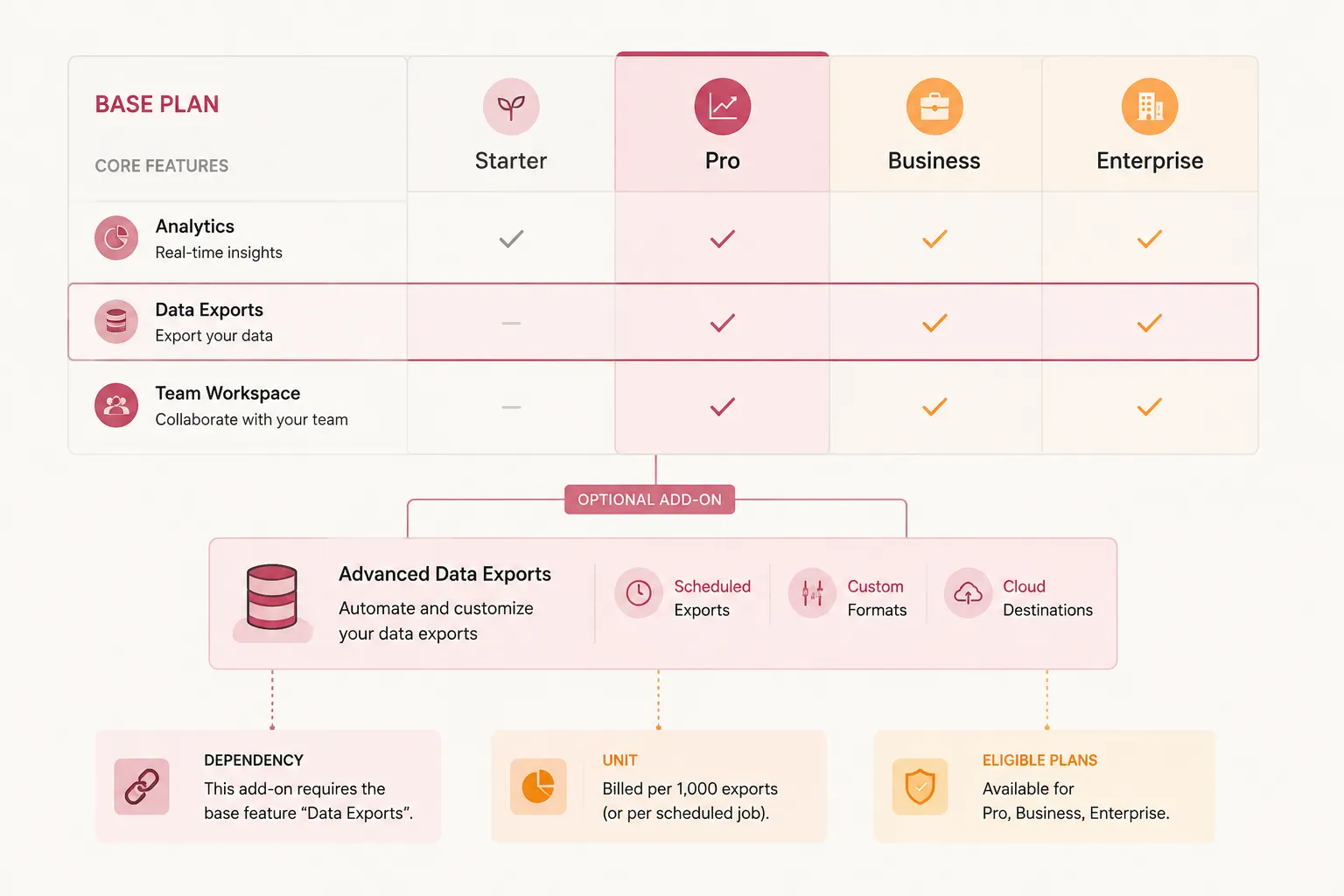
Use add-on when the capability is available only after an additional product or pricing component is selected. Identify the dependency where the buyer encounters the feature.
A separate add-on block can show the name, price, unit, and required plan. The feature row should still point clearly to that relationship rather than sending the reader several screens away to infer whether access is included, optional, or unavailable.
Usage-, seat-, credit-, trial-, and contract-dependent states
These states describe conditions that sit behind the plan label. They should appear as text when the condition changes what the buyer receives or pays for.
- Usage-based: show the measured unit, included allowance, reset period where relevant, and what happens at the boundary.
- Seat-dependent: state whether access applies to all seats, a defined number of seats, administrator seats, or separately purchased seats.
- Credit-dependent: show the credit unit and its relationship to the capability. “AI tools included” may be incomplete when access stops at a monthly credit limit.
- Trial-dependent: distinguish temporary access from permanent plan inclusion, including any duration or usage boundary.
- Contract-dependent: identify terms that require a negotiated agreement instead of presenting them as standard public-plan inclusion.
Pricing describes how the buyer pays. Packaging describes what the buyer receives. The comparison table should show their relationship without treating them as interchangeable.
Decide When a Checkmark Is Appropriate
A binary checkmark works when the underlying question is genuinely binary: is this capability included in this plan under the displayed terms?
Use it only when the answer remains consistent across relevant dimensions. If access varies by quantity, seats, credits, usage, trial status, add-ons, or contract terms, use text or a combined symbol-and-label treatment.
- Name the capability precisely.
- Identify the condition that controls access.
- Check whether that condition differs across plan columns.
- Select a state label that exposes the difference.
- Add the limit or dependency beside the label.
- Move supporting detail into a footnote, tooltip, expandable section, or FAQ when the table would become too dense.
The visual treatment should follow the state logic. Do not force different entitlement states into a predetermined icon set.
Show Exceptions Where the Comparison Happens
Exceptions are the details that prevent a broad label from becoming misleading. Common examples include quantity limits, feature depth, seat counts, usage allowances, credit balances, trial duration, required add-ons, reset timing, and exclusions between optional components.
A row that says “Reporting: Included” may need an adjacent note when one plan offers summary reports while another adds advanced reports and exports.
Use a layered hierarchy:
- Summary plan information for orientation.
- Decision-relevant feature rows for direct comparison.
- Exception details for limits, dependencies, and qualifications.
- Footnotes, tooltips, expandable details, or FAQs for conditions that need more explanation.
This is a planning option, not a universal page rule. Put decision-critical exceptions in or beside the relevant row. Supporting detail can move elsewhere when the connection remains obvious.
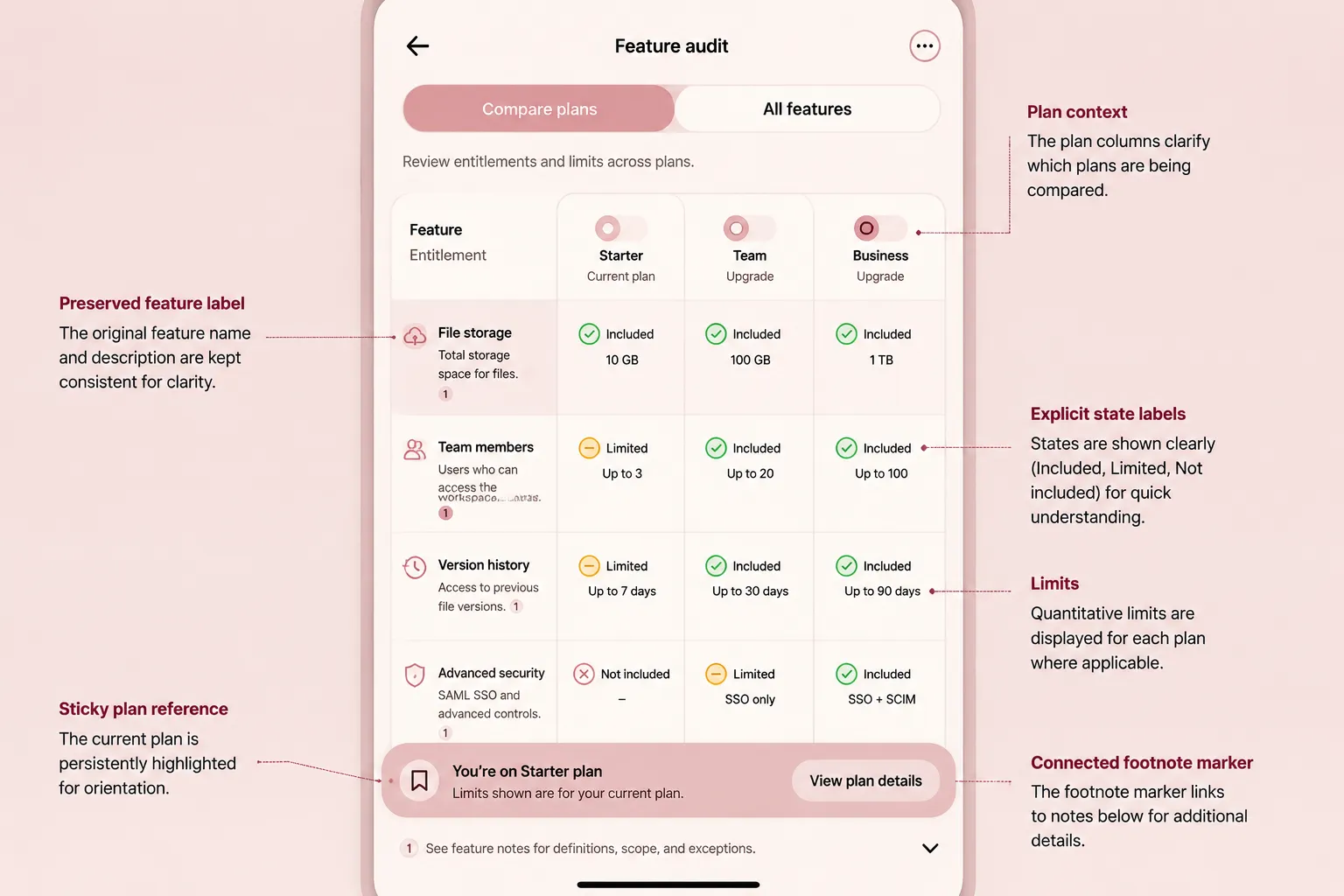
Footnote markers should connect to matching explanations. In a mobile pass, verify that each marker and explanation remain associated after columns collapse, stack, or move.
Keep Comparison States Inspectable Without Relying on Color
Color should not be the sole way to distinguish included, unavailable, limited, or conditional states. Pair color with visible words, symbols, patterns, or another non-color cue so the state remains identifiable when color is unavailable or difficult to distinguish.
- Included: checkmark plus “Included”
- Unavailable: dash plus “Not included”
- Limited: symbol plus the stated allowance
- Conditional: “Add-on,” “Usage-based,” or another specific dependency label
A pale cell, gray dash, or green background may not communicate enough on its own. The practical page requirement is narrower than a full implementation review: every comparison state should be explicit without depending on color alone.
W3C, Section 508, and WebAIM guidance can support inspection of color use and contrast. They do not turn a particular table pattern into complete accessibility advice or formal approval. Check the actual semantic structure, text alternatives, keyboard behavior, responsive behavior, and other implementation details against applicable authoritative guidance before publishing.
Turn the State Inventory Into a Production Brief
Once the state inventory is stable, convert it into a page brief. The brief should describe what the buyer needs to compare and what each asset must make visible.
- Table container behavior and available width
- Plan column order
- Feature group order
- Primary tier cues
- State labels and symbols
- Limit and unit formatting
- Add-on block requirements
- Footnote and tooltip relationships
- FAQ questions created by unresolved conditions
- Accessibility metadata requirements
- Source-rights notes for supporting graphics
- Mobile behavior and pre-publication checks
Feature groups should follow the buyer’s comparison task. One product may need separate groups for core access, collaboration, limits, reporting, support, and add-ons; another may require a different sequence.
Avoid grouping unlike conditions under labels such as “Advanced features.” Separate rows can show which capability is included, limited, unavailable, or conditional.
An add-on graphic should explain the relationship between the base plan and optional capability. It should not replace the text needed to understand the condition. An FAQ asset can support a question about limits or dependencies, but the primary exception should remain visible near the relevant row.
Plan Supporting Assets Around the State
Each visual asset should answer a specific comparison question. A useful asset brief names:
- The capability or condition being clarified
- The intended reader decision
- The state vocabulary used in the table
- Required labels and units
- Relevant plan columns
- Required alt text or equivalent description
- Source image and rights status
- Crop and responsive behavior
- The asset’s location on the page
For an add-on block, specify the add-on name, dependency, unit, and eligible plans. For an FAQ asset, specify the question, the exception being explained, and the table row it supports.
Do not use decorative imagery to carry an entitlement rule. If the reader must understand that a capability requires credits or an additional purchase, the condition belongs in text.
Record where a supporting image came from and whether its permitted use has been checked. This is a publishing control, not a statement that the page has received formal legal clearance.
Run a Mobile Pricing Comparison State Audit
A desktop table can show several plan columns at once. A mobile layout may collapse categories, allow horizontal movement, stack plan details, or change the relationship between labels and footnotes.
Run the mobile pass after the responsive state is implemented. Inspect the page in the form a buyer will actually see.
- Can the reader identify the current plan column?
- Does horizontal movement preserve the row label?
- Do sticky headers remain associated with the correct plan?
- Are included and unavailable states still explicit?
- Are limited states shown with their quantities or depth?
- Do add-on and contract conditions remain visible?
- Do footnotes stay connected to their markers?
- Does category collapse hide a decision-relevant row?
- Do tooltips remain discoverable and usable?
- Are symbols accompanied by readable labels?
- Does text wrap without changing the meaning of the state?
- Can a reader compare a row without losing the feature name?
A collapsed category may reduce scanning effort, but it can also hide an important exception. A sticky plan header may preserve context, but it should not obscure the row label or footnote.
Mobile is a separate state audit.
Use Vendor Pages as Dated Examples
Commercial pricing pages can illustrate how plans, limits, add-ons, and conditional details are presented. Treat GitLab and HubSpot as vendor-controlled examples, inspected directly and dated at the time of writing.
A visible label or plan grouping describes that vendor page at a particular point. It does not establish that the pattern improves usability, conversion, revenue, upgrades, or another business result.
Before including a specific example, verify that:
- The live page still shows the referenced state.
- The displayed plan names and limits are current.
- The interaction required to reveal the detail still works.
- The example is described as an observation of that vendor page.
- The example is not used as the basis for a general performance claim.
The available material does not provide independent buyer testing for a particular table layout. Keep recommendations grounded in observable page behavior, task reasoning, and production checks.
Review the Table Before Publishing
The final review tests the relationship between capability, state, condition, and presentation.
- Confirm every visible feature row exists in the feature inventory.
- Confirm each plan column has a defined state for that row.
- Replace binary marks where depth, quantity, seats, credits, usage, trials, add-ons, or contracts change access.
- Confirm every exception has a visible label or connected explanation.
- Check that no feature appears published but inaccessible under every plan or add-on.
- Verify that limits use an identifiable metric and stated period where relevant.
- Confirm add-on dependencies are not hidden in unrelated page sections.
- Check that color is not the only state cue.
- Run the mobile pass on labels, row context, sticky headers, collapsible groups, and footnotes.
- Recheck current prices, limits, plan names, and availability on the live source page.
- Record inspection dates for changeable vendor examples.
- Review source-rights notes and accessibility implementation details before publishing.
Research on pricing-driven feature availability supports separating product capability, pricing entitlement, and page-visible state. It does not provide independent usability evidence for a specific table layout, so keep that distinction as a planning aid rather than a performance conclusion.
FAQ: Pricing Comparison States
Does a checkmark mean the same access across all plans?
No. A checkmark can hide differences in depth, quantity, seats, credits, usage, or other conditions. Add a plain-language limit when access is not equivalent.
What should replace a checkmark for a limited feature?
Use a text label or combined symbol-and-label treatment. State the boundary, such as a quantity, feature depth, seat allowance, or usage limit.
How should an unavailable feature appear?
Use an explicit label such as “Not included” or “Unavailable.” Avoid an unexplained blank cell or dash that could be mistaken for missing information.
How should an add-on-dependent feature appear in the table?
Identify the feature as an add-on and connect it to the relevant add-on block or explanation. State any required plan or dependency where the buyer encounters the feature.
What is a conditional feature state?
It is a state where access depends on a condition beyond the plan label, such as usage, seats, credits, trial status, add-on selection, or contract terms.
Should all exceptions appear in the main table?
Not always. Put decision-critical exceptions in or beside the relevant row. Move supporting detail into footnotes, tooltips, expandable content, or FAQs when the connection remains visible.
How can a pricing table communicate states without relying on color?
Use visible text, symbols, patterns, or combined treatments. The reader should be able to distinguish included, unavailable, limited, and conditional states without interpreting color.
What should the mobile review focus on?
Check whether the feature name, plan context, state label, limit, dependency, and footnote remain connected after horizontal movement, sticky headers, stacking, or category collapse.
The Completion Test
The page is ready for the next production step when a buyer can inspect each important row and answer four questions:
- Is the capability included?
- If included, what limit or depth applies?
- If conditional, what changes the answer?
- Where can the exception be verified?
The table does not need to expose every internal entitlement rule. It does need to make buyer-relevant differences visible, labeled, and reviewable before publishing.